Change Monitor
Discontinued. Change monitors can no longer be created or run. Existing monitors remain viewable in the Change Monitor UI. The guide below is retained for reference.
Change Monitor watches a PR through to production. When the PR merges and rolls out, an agent runs a plan tailored to that change — checking that the intended effect lands and that nothing else regresses — then posts updates on the PR and (optionally) DMs you on Slack.
Use this when you want to ship faster without doing the manual “stare at dashboards for an hour after deploy” step.
Prerequisites
- Install the GitHub Connection.
- Register deployments — either via GitHub Deployments (automatic) or the Deployments API (for other CI/CD systems).
Starting monitoring on a PR
Pick whichever fits your workflow:
- GitHub comment — write
@firetigeron the PR. You can add extra context in the same comment (what to watch for, what to ignore); it’s passed to the planning agent.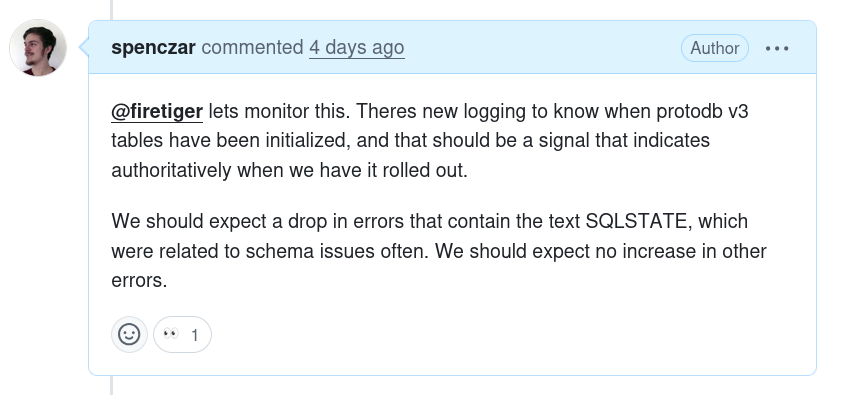
- Firetiger UI — paste a PR URL into the Change Monitor and click Start Monitoring.
- MCP — call
monitor_pr(pr_url=...)from the Firetiger MCP server. Passinitial_messageto steer focus. - Automatic — flip on Auto-Monitor Opened Pull Requests on the GitHub connection. Every opened PR gets a monitoring plan; a natural-language filter lets you restrict to PRs that touch production-meaningful code. See GitHub connection settings.
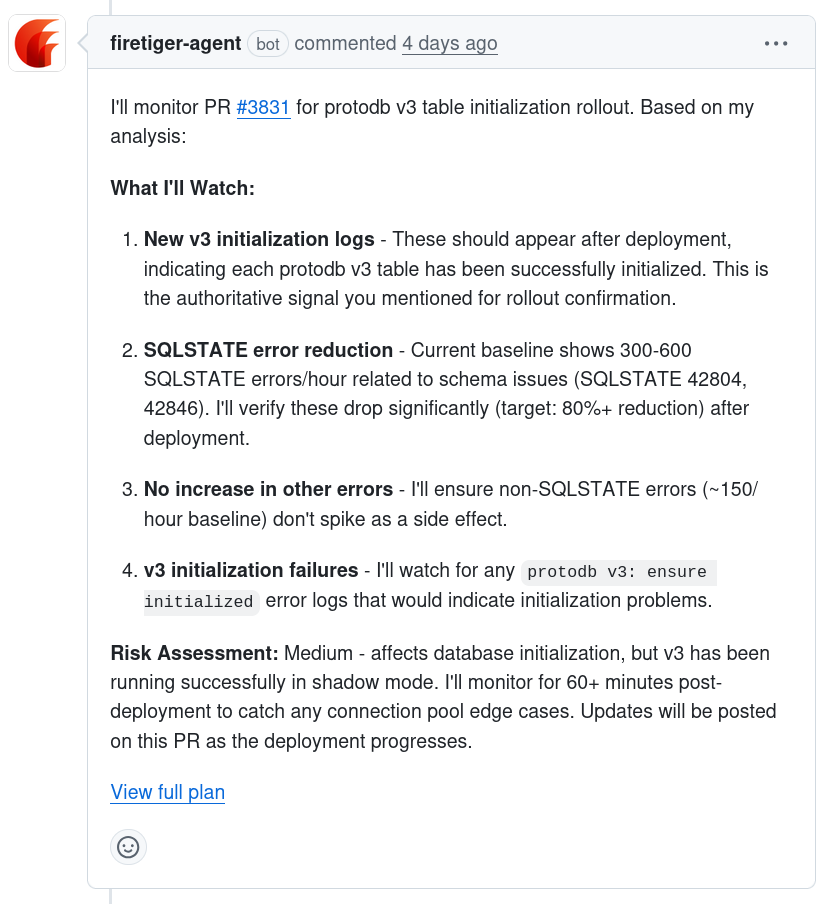
You’ll get a quick “👀” reaction confirming the trigger fired, then a PR comment with a link to the plan. Once planning finishes, the full plan is posted as another comment:
What happens after merge
When a deployment is registered whose SHA is a descendant of the PR’s merge commit, Firetiger marks the PR as deployed and starts the plan. Checks run at 10 minutes, 1 hour, and 72 hours after each deploy. If the monitoring plan is not ready at 10 minutes, the first check runs as soon as it is ready. Each check looks at both intended effects and regressions. If the same PR ships to another environment, the schedule resets for that environment. Plans expire 14 days after first deployment.
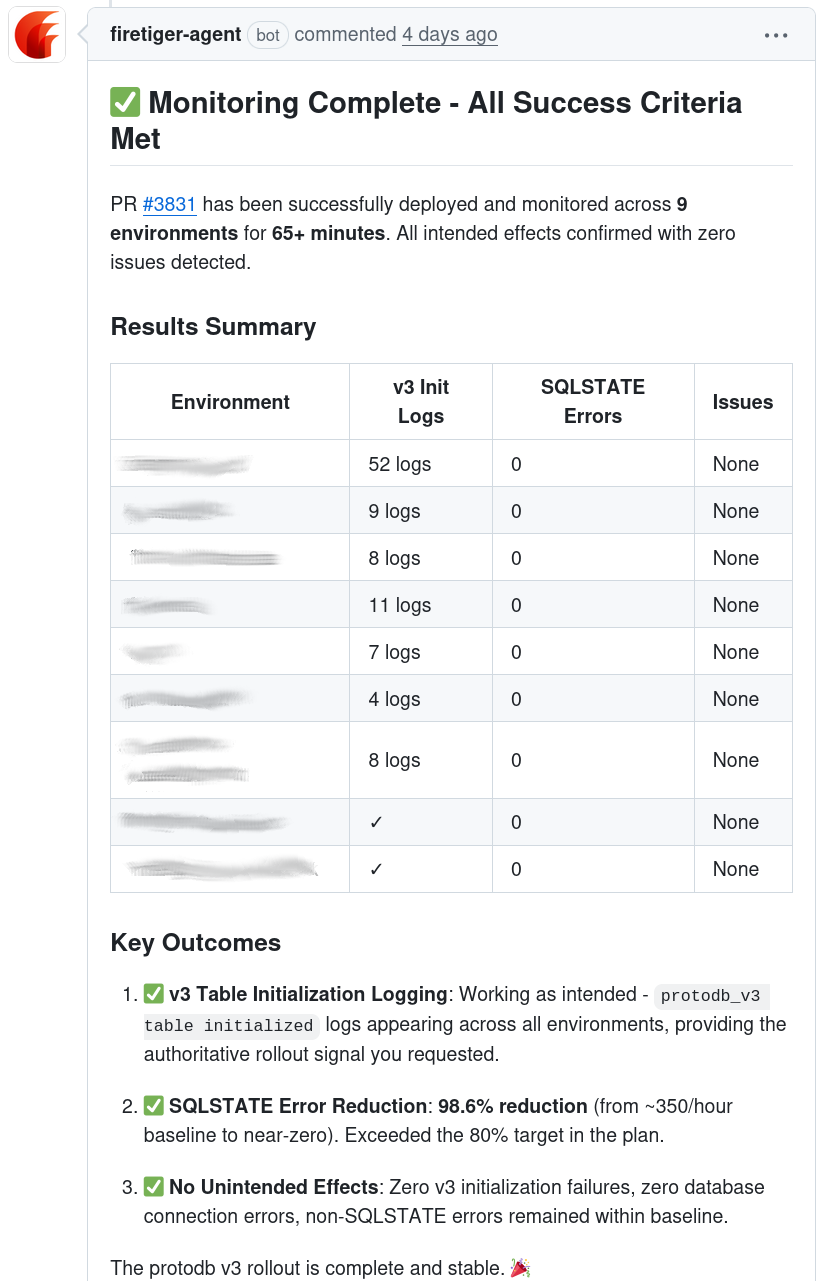
You’ll see updates on the PR — including when the intended effect is confirmed:
Slack DM updates
Change Monitor can DM you the same updates it posts on the PR — useful if you don’t live in GitHub notifications. Each PR gets its own DM thread, so updates land as replies instead of spamming your inbox.
One-time setup at Change Monitor settings:
- Install the Firetiger Slack app in your workspace.
- Link your GitHub and Slack identities.
- Click Send test DM to verify delivery and enable notifications.
After that, any PR you author gets a Change Monitor DM thread for plan publishes and status updates. You can toggle delivery off at the same settings page; the per-PR thread is reused if you re-enable later.
When monitoring finds something
If a check turns up a problem, Firetiger:
- Posts a detailed comment on the PR (and a DM, if enabled) describing what’s out of expectations.
- Opens an FT-N issue in your Firetiger project, linked to the PR. Feeding that issue into Claude Code via the MCP server gives the agent the full investigation context to propose a fix. When the resulting PR merges and re-deploys cleanly, the issue closes automatically.
- Optionally pings a Slack channel (configure in Change Monitor settings).
You can also browse everything in the UI: open the Change Monitor list for the plan, PR updates, deployment results, and per-environment status.
Weekly Impact Reports
Change Monitor results also feed Impact Reports: a weekly, per-engineer summary of what your shipped changes did in production — the lead win, the week’s numbers, and anything that regressed — delivered as a Slack DM. On by default for every engineer with a change monitor, with a per-user opt-out in settings. See the Impact Reports guide.
Registering deployments
If your CI/CD uses GitHub Deployments, Firetiger picks up deployment events automatically via the GitHub Connection — no extra config.
Registering deployments via API
For other CI/CD systems, POST directly:
curl -X POST https://api.cloud.firetiger.com/deployments \
  -u "$FT_DEPLOY_USERNAME:$FT_DEPLOY_PASSWORD" \
  -H "Content-Type: application/json" \
  -d '{
    "repository":   "owner/repo",
    "environment":  "production",
    "sha":          "abc123def456...",
    "deploy_time":  "2024-01-15T10:00:00Z"
  }'
| Field | Required | Description |
|---|---|---|
repository |
yes | Repository in owner/repo format |
environment |
yes | Deployment environment (e.g. production, staging) |
sha |
yes | Git commit SHA that was deployed |
deploy_time |
no | RFC 3339 timestamp; defaults to request time |
Auth: deploy credentials (Basic auth) from the Firetiger UI on the Deployments page under Create a deployment.
Response: 200 OK with the created deployment’s resource name:
{"name": "deployments/abc123"}
For a step-by-step CI/CD example, see the GCP Cloud Build guide.