Inspect
Inspect is Ramp’s internal coding-agent platform. An Inspect connection surfaces Inspect in the Fix ▾ dropdown on every Firetiger issue — clicking it opens an Inspect session seeded with the issue’s description and investigation details.
This page covers setting up the connection. For the end-to-end workflow (what happens after you click Fix), see Fixing issues with coding agents.
Recommended: Create and manage connections via the web UI at https://ui.cloud.firetiger.com/integrations/connections.
Installation
-
Get an Inspect bearer token from the Ramp Inspect team. Tokens start with
riu_(user-scoped) orris_(service-scoped). -
In the Firetiger UI, navigate to Integrations → Connections, click New Connection, and select Inspect from the picker.
-
Fill in the form:
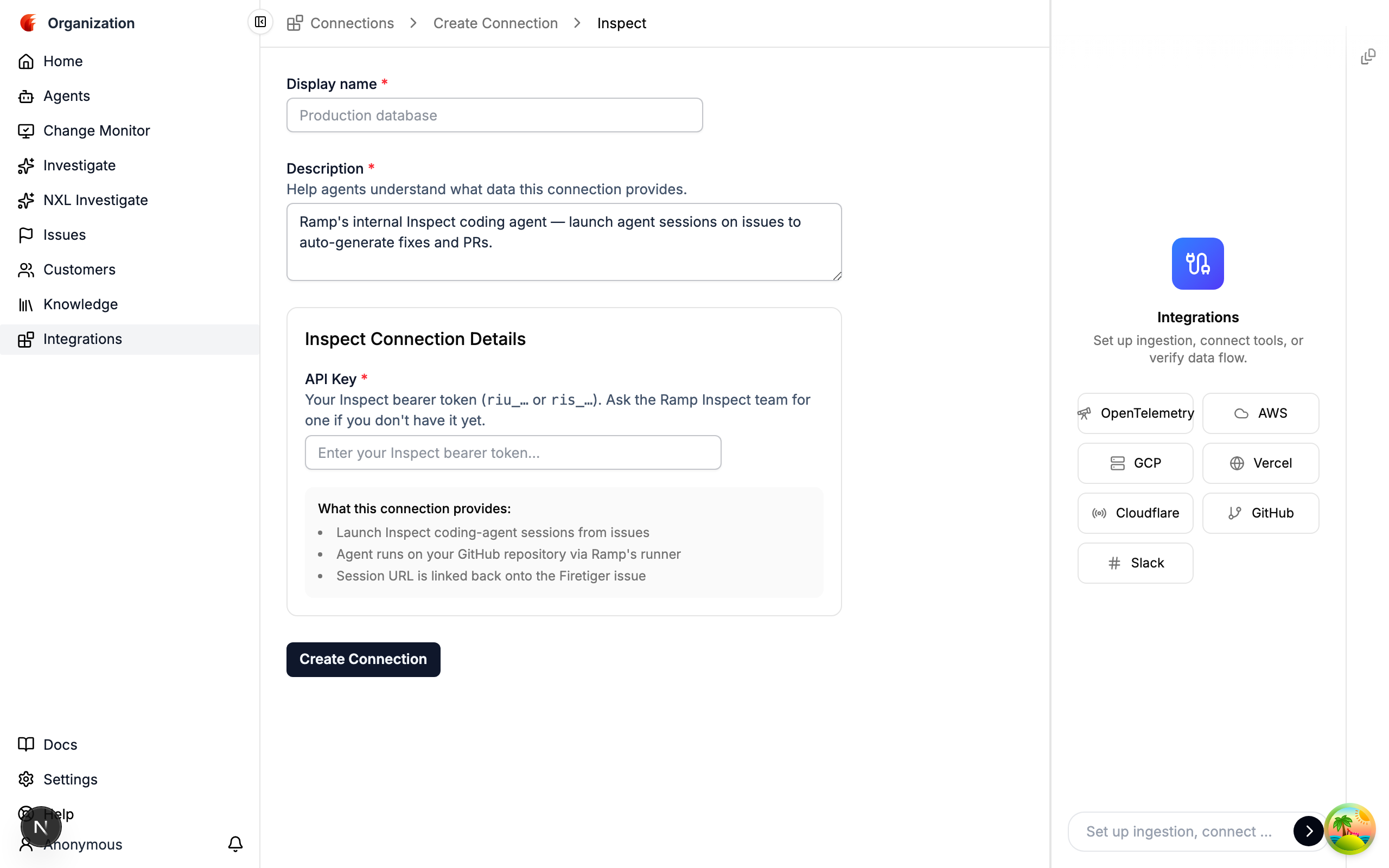
Field Description Display name Shows up verbatim in the Fix ▾dropdown. Use a descriptive name if you register multiple tokens (e.g., per team).Description Free-text context for your teammates. Not sent to Inspect. Server URL Pre-filled with https://inspect.ramp.engineering(Ramp production). Change only if you’re pointing at a non-production Inspect deployment (staging, regional, or a private instance).API Key Paste the riu_...orris_...bearer token from step 1. Stored encrypted and never returned via the API; omit it on subsequent edits to keep the existing value. -
Click Create Connection. Inspect now appears in the
Fix ▾dropdown alongside any other coding agents you’ve configured.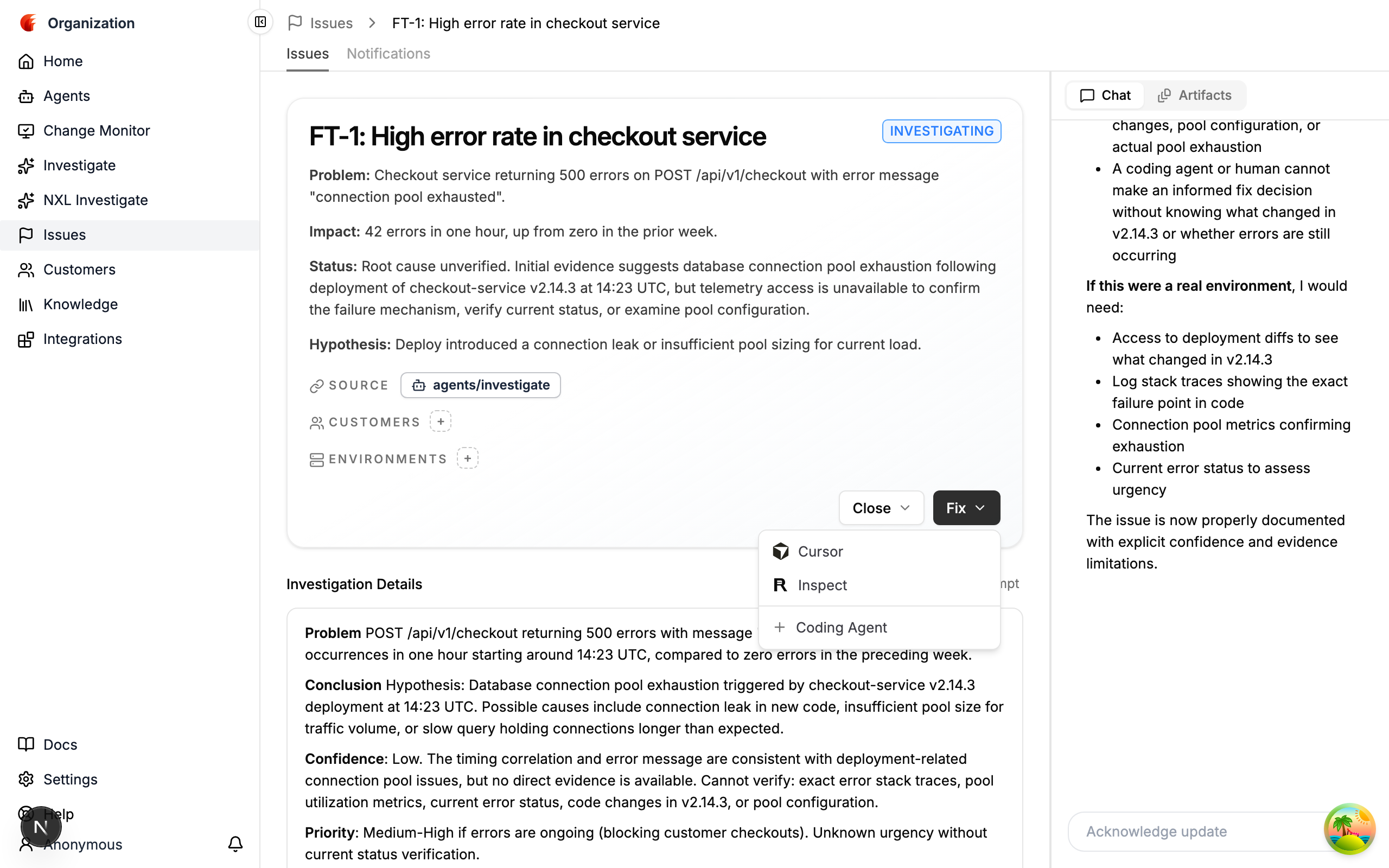
What gets created
A single Connection resource with:
| Field | Value |
|---|---|
connection_id |
Whatever you supplied in Display name, kebab-cased, or an auto-generated inspect-... id |
connection_type |
CONNECTION_TYPE_INSPECT |
display_name |
The value you entered |
secret_id |
Managed by Firetiger’s secrets backend — the bearer token itself is never returned |
No webhooks, no GitHub App install, no extra side effects — just a stored credential and a row that shows up in the Fix dropdown.
Multiple Inspect connections
You can register as many Inspect connections as you want — each one renders as a distinct row in the Fix ▾ dropdown with its own display name. Useful for scoping tokens per team or for combining user and service tokens in a single Firetiger workspace.
Revoking a token
To rotate a compromised or expired Inspect token:
- Revoke it via the Ramp Inspect team.
- In Firetiger, go to Integrations → Connections, find the Inspect connection, click Edit, and paste the new token.
If you omit the token on edit, Firetiger keeps the previous value — useful for updating only the display name or description without touching the credential.
Capabilities
A configured Inspect connection enables:
- Fix-from-issue —
Fix ▾ → Inspecton any issue detail or issue-card surface, seeded with the issue’s description and details. - Multiple simultaneous sessions — clicking Inspect on different issues launches independent sessions that work in parallel.
Availability
Inspect is Ramp-internal and only surfaced on the Firetiger deployment hosted for Ramp. It is not available on Firetiger Cloud or on other BYOC stacks. If you’re evaluating a different coding agent, see Cursor or the Coding Agents API for what Firetiger supports generally.
Related
- Fixing issues with coding agents — end-to-end workflow, from
Fix ▾click to closed issue - Coding Agents API — programmatic access to launch / list / get sessions
- Connections API — create and update the underlying Inspect connection via API