Query Firetiger with JDBC
JDBC is the Java API most commonly used to interact with relational databases. JDBC “drivers” implement the JDBC API for specific databases.
An official FlightSQL JDBC driver exists.
Generally speaking, it is configured with a URL such as jdbc:arrow-flight-sql://{host}:{port}
Get the JDBC driver
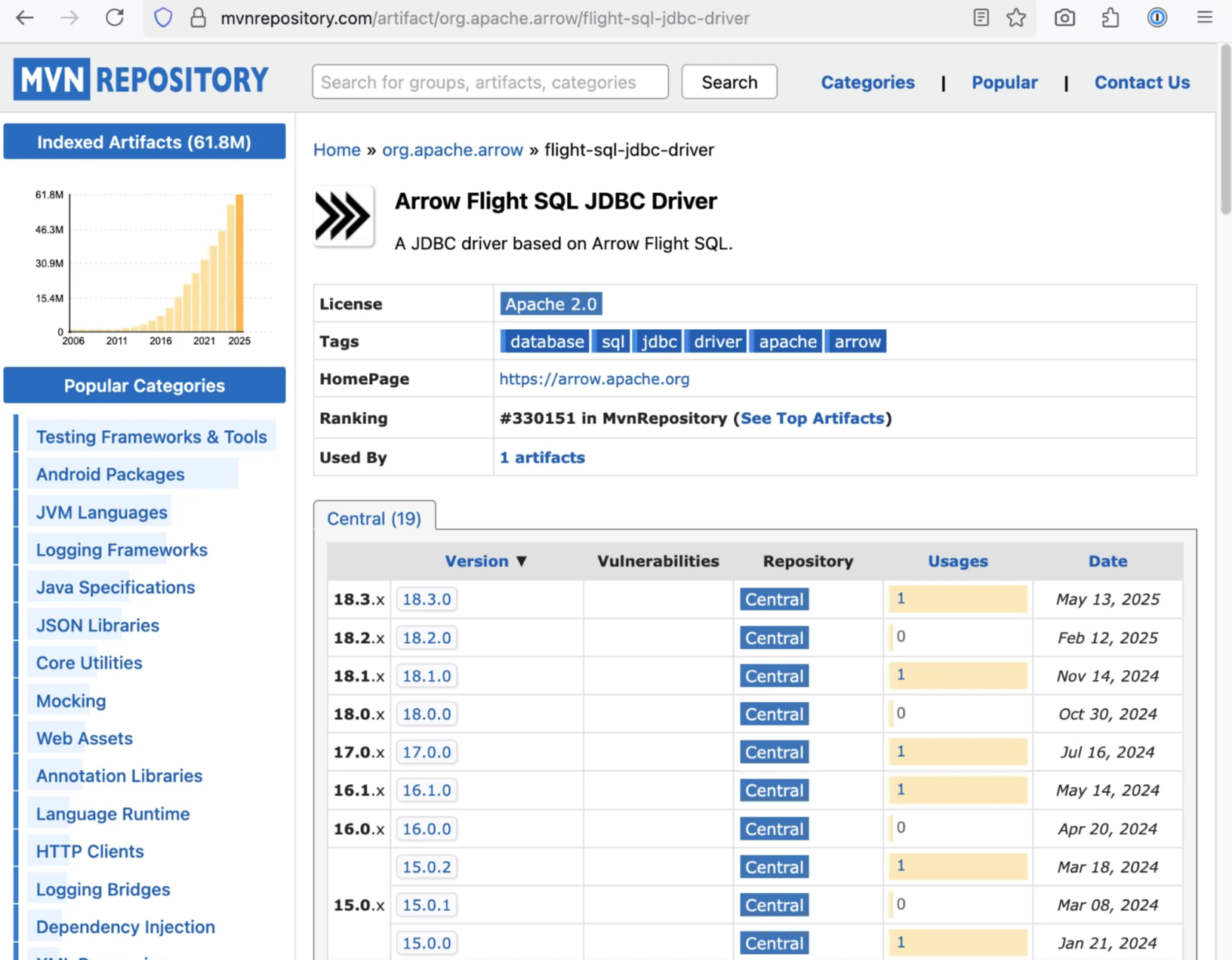
The JDBC driver is not included in most database products implemented in Java, so we need to fetch it ourselves. It can be downloaded as a .jar file at mvnrepository.com/artifact/org.apache.arrow/flight-sql-jdbc-driver:
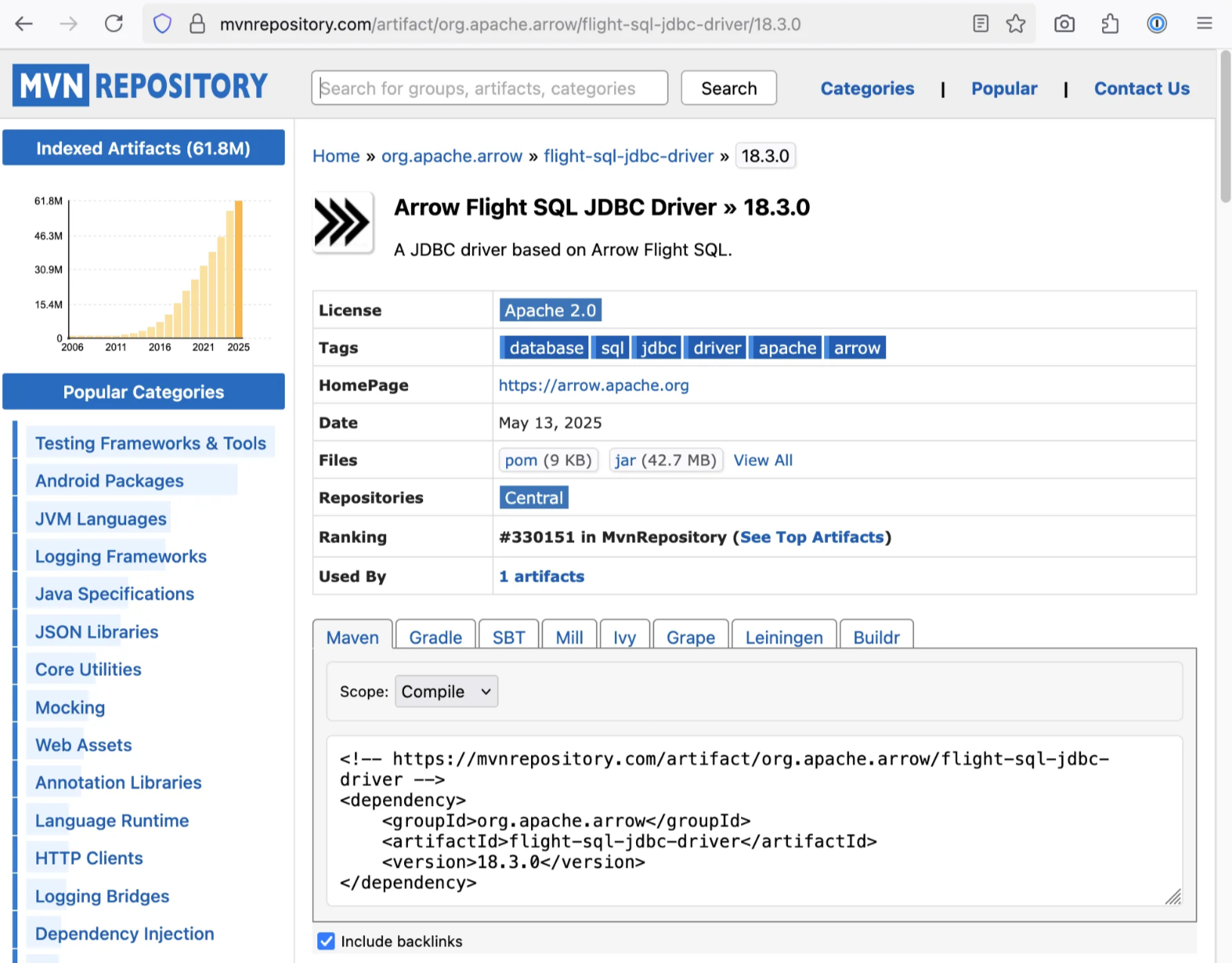
Click the latest version number (18.3.0 in the example) and then download by clicking the “jar” link:
Example: DBeaver
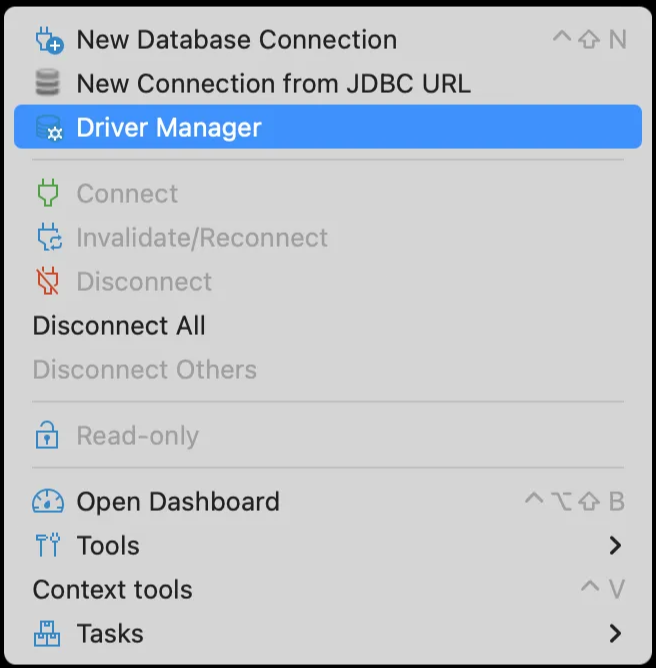
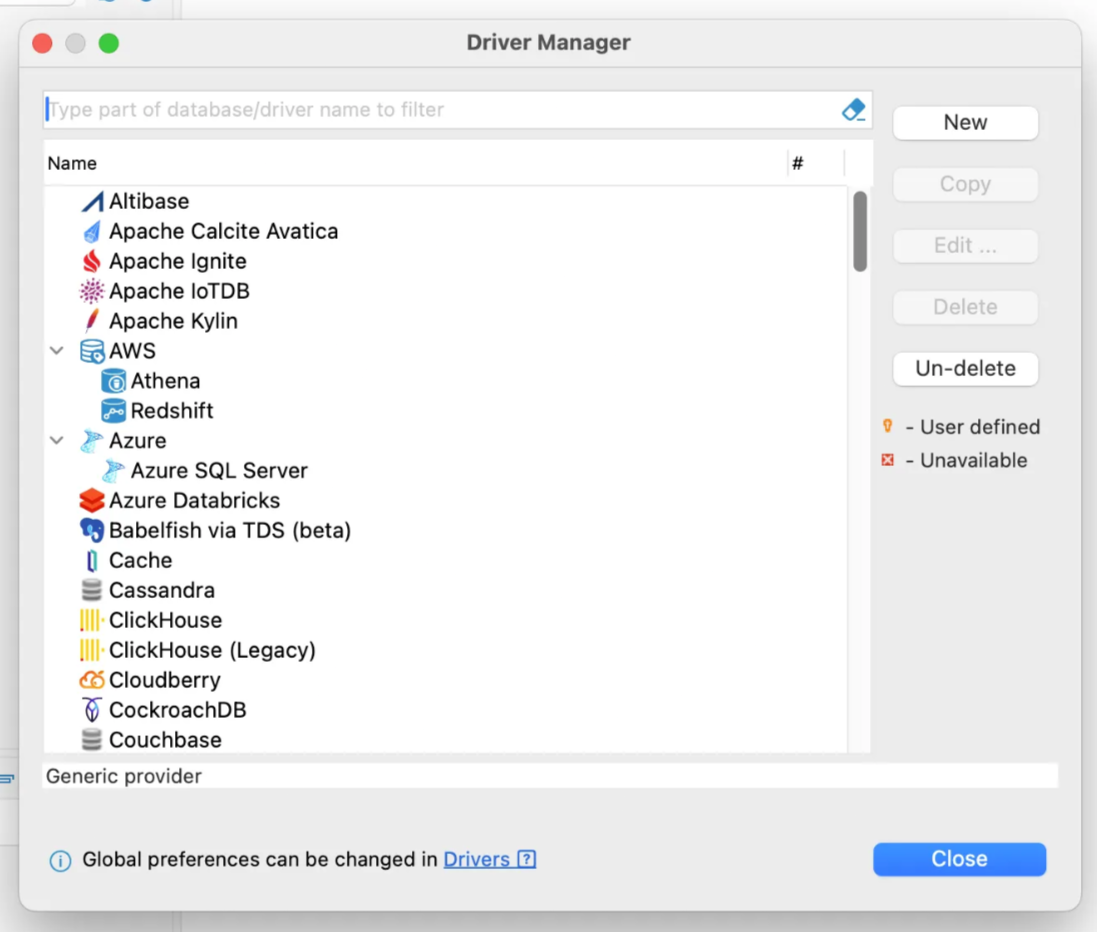
Open DBeaver, open the “Database” menu, then click “Driver Manager”:
In the Driver Manager dialog, click “New”:
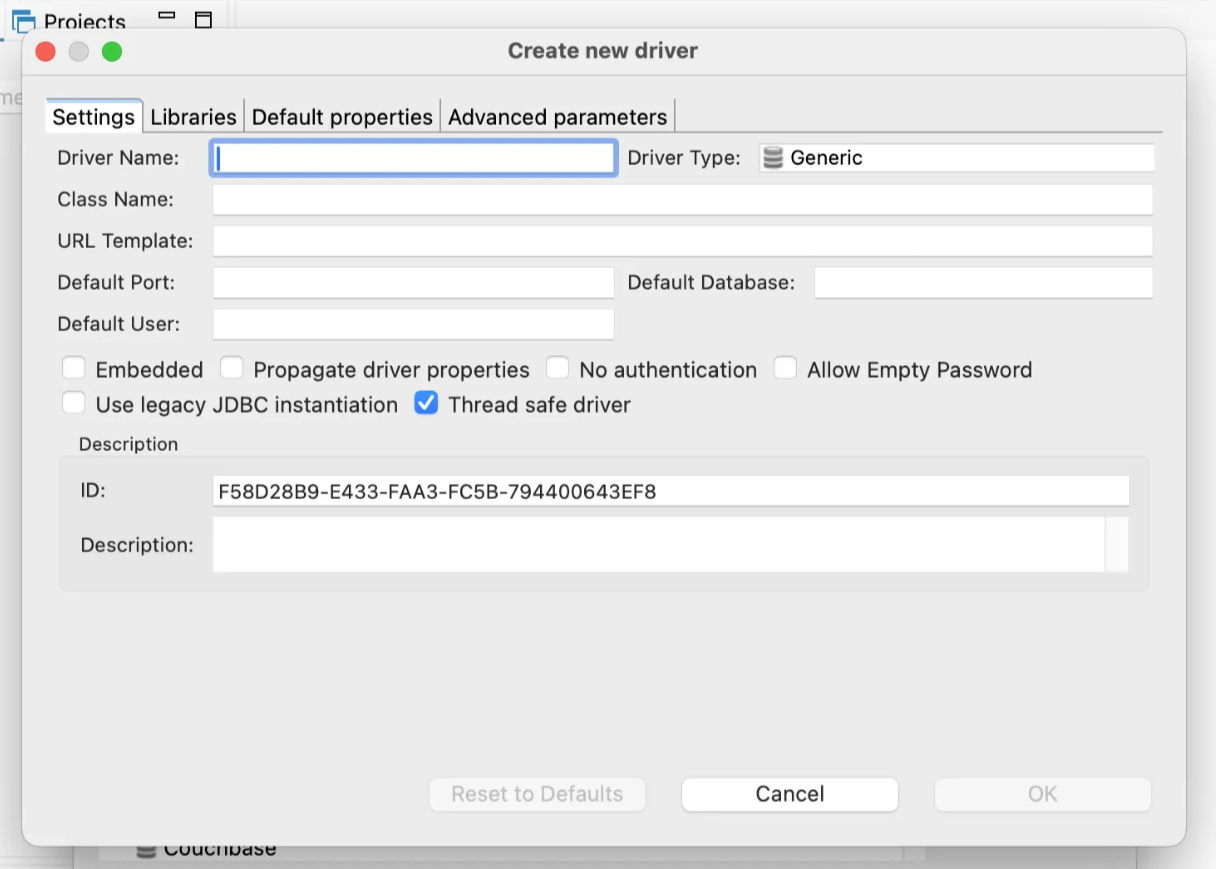
Jump right to the “Libraries” tab:
Click “Add File” and navigate to the JDBC driver (the .jar file downloaded earlier).
Then click “Find Class” and select org.apache.arrow.driver.jdbc.ArrowFlight.JdbcDriver.
Then go back to the “Settings” tab:

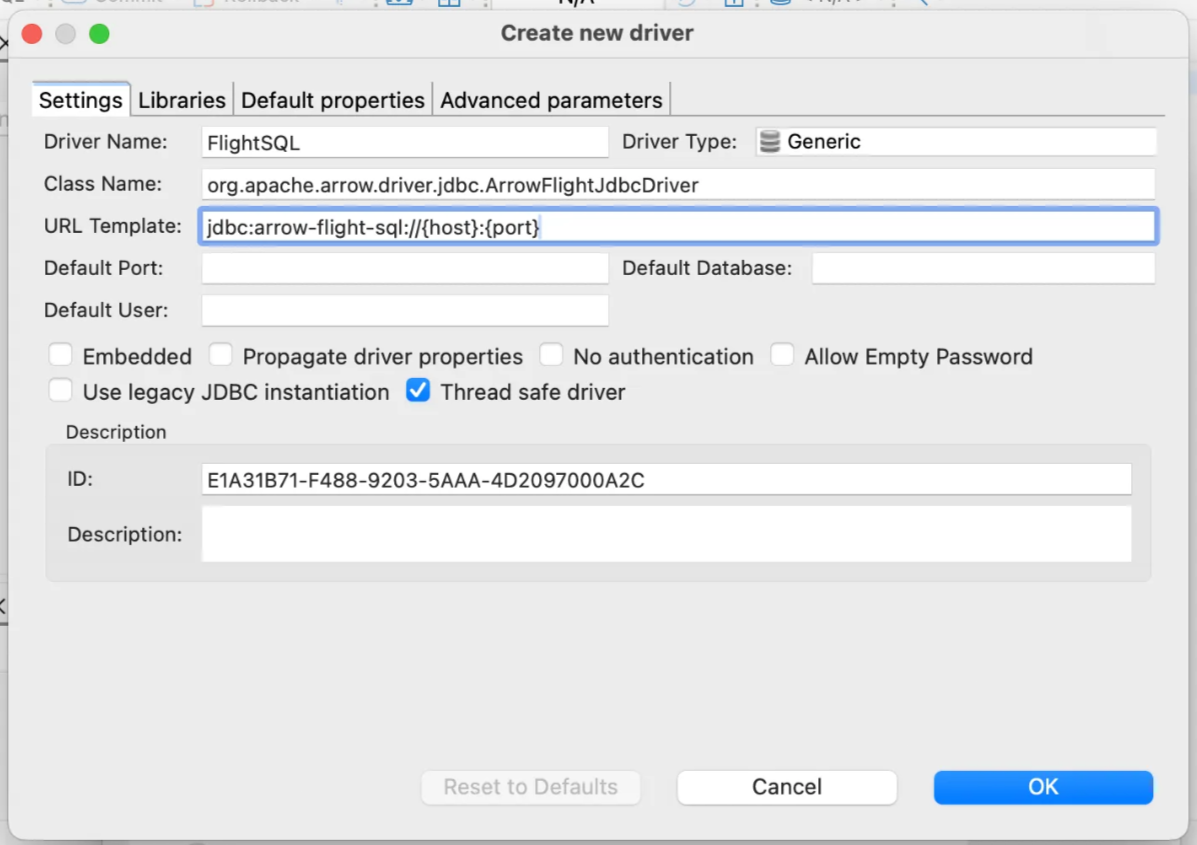
In the screenshot below,
- Driver Name: just a human-readable name for this driver, “FlightSQL”
- Driver Type: indicate a specific SQL flavor; we use DuckDB which is close to PostgreSQL
- Class Name: you selected this from a list in the previous step
- URL Template:
jdbc:arrow-flight-sql://{host}:{port}
Default values should be fine for the remaining fields.
Click “OK” to save this new driver, and notice the FlightSQL driver has been added to the Driver Manager. Click “Close”:

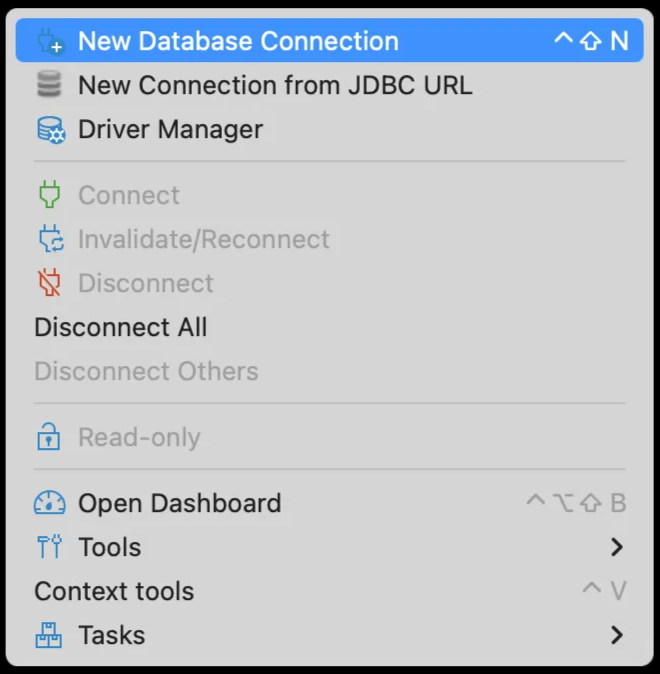
Now we’ll connect to a Firetiger database using the FlightSQL driver. Open the “Database” menu, then click “New Database Connection”:
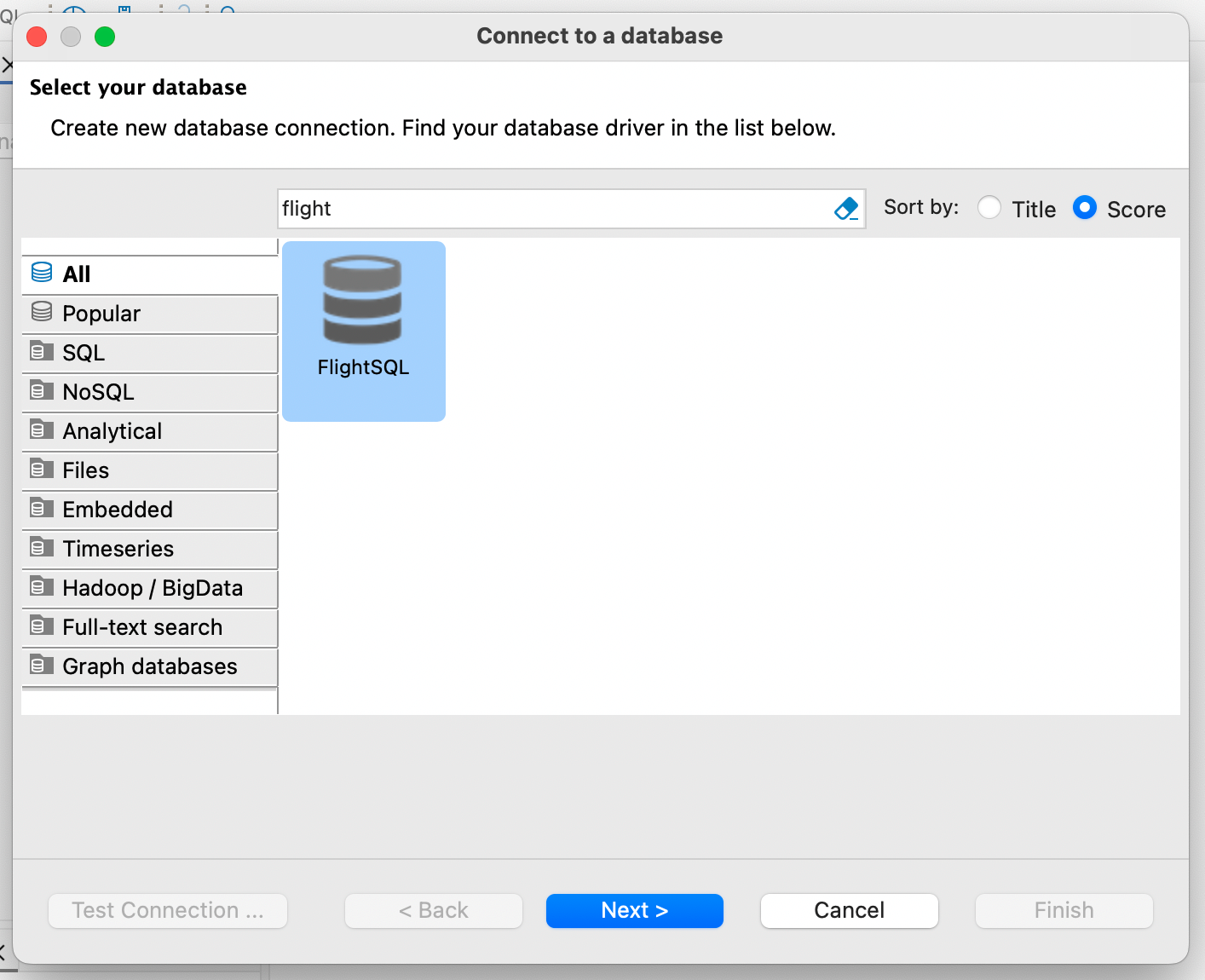
Select the FlightSQL driver and click “Next >”:
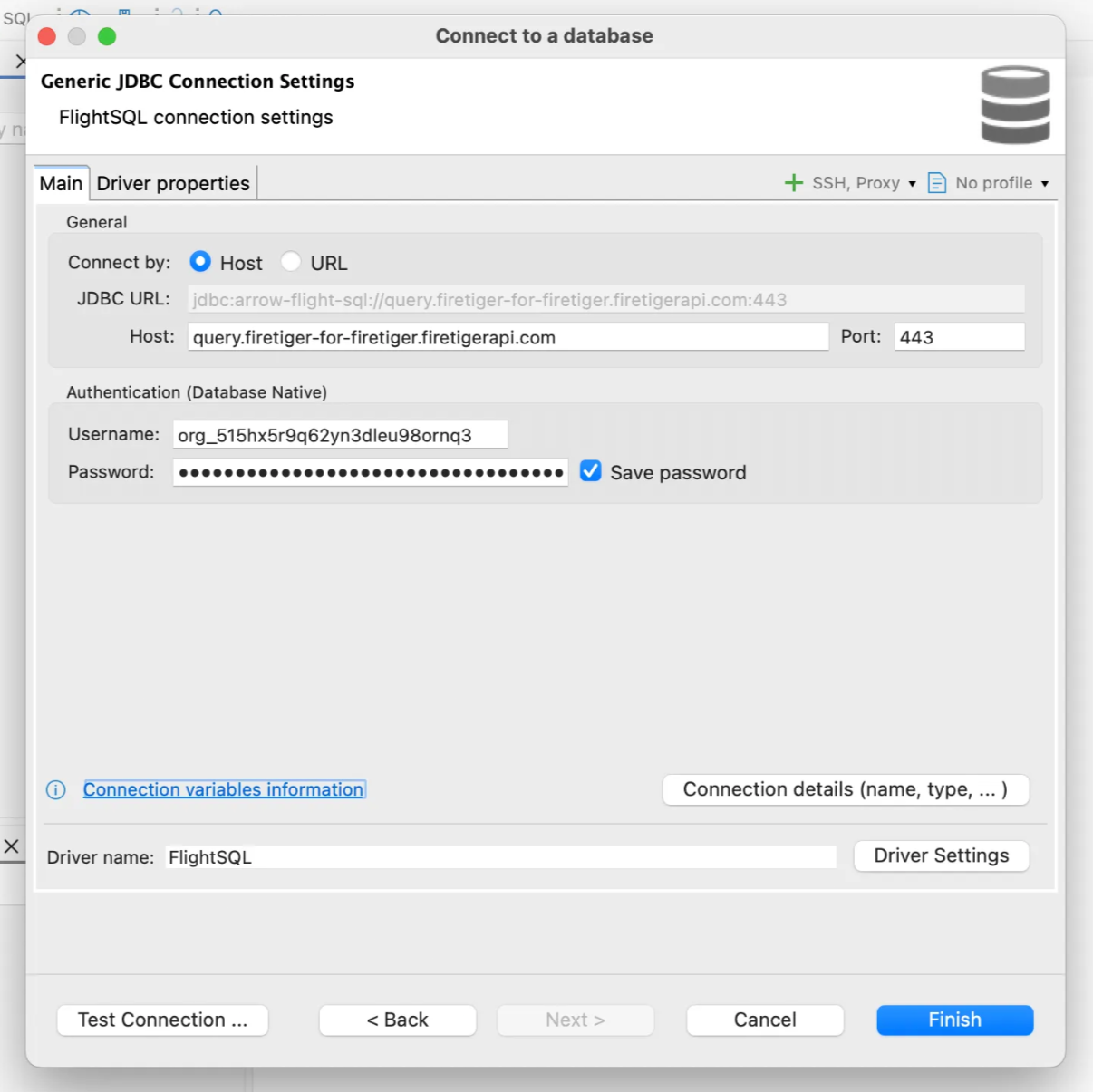
Fill in these fields:
- Host:
query.<your firetiger deployment name>.firetigerapi.com- docker compose:
localhost
- docker compose:
- Port:
443- docker compose:
4317
- docker compose:
- Username:
<find this on the Firetiger Integrations page> - Password:
<find this on the Firetiger Integrations page>
ONLY IF you’re connecting to a Firetiger query server without TLS encryption:
- Switch to the “Driver properties” tab
- Click “Add user property”
- Submit property name
useEncryption - Click “OK”
- Click the value field for the new property
- Type
falseand hit Enter

Then click “Test Connection …” and expect a modal dialog with success message “Connected”:
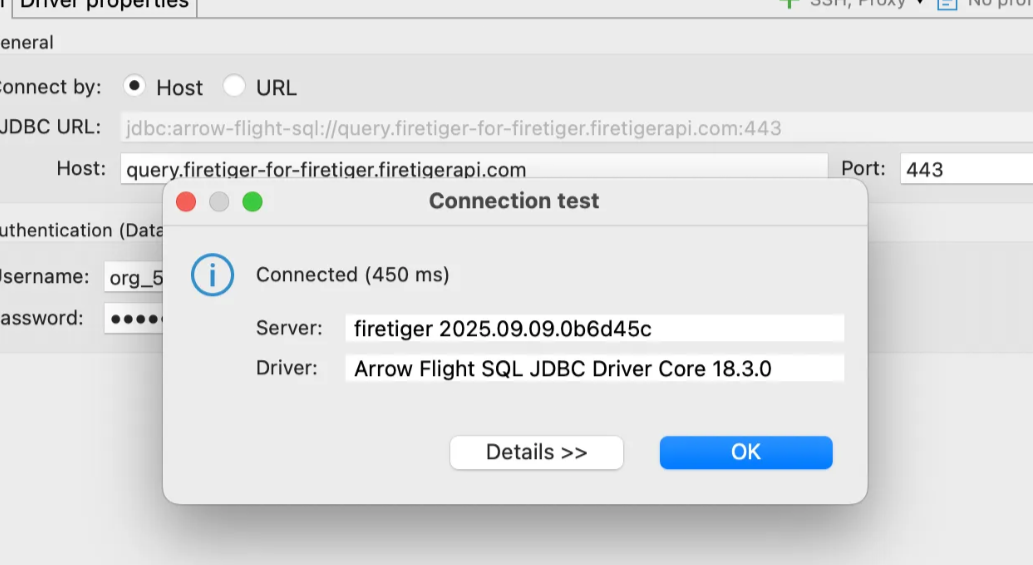
Click “OK” and “Finish” to save the new connection.
Now we’ll query a Firetiger database using new new connection. Open the “Database” menu, then click “New SQL script”:

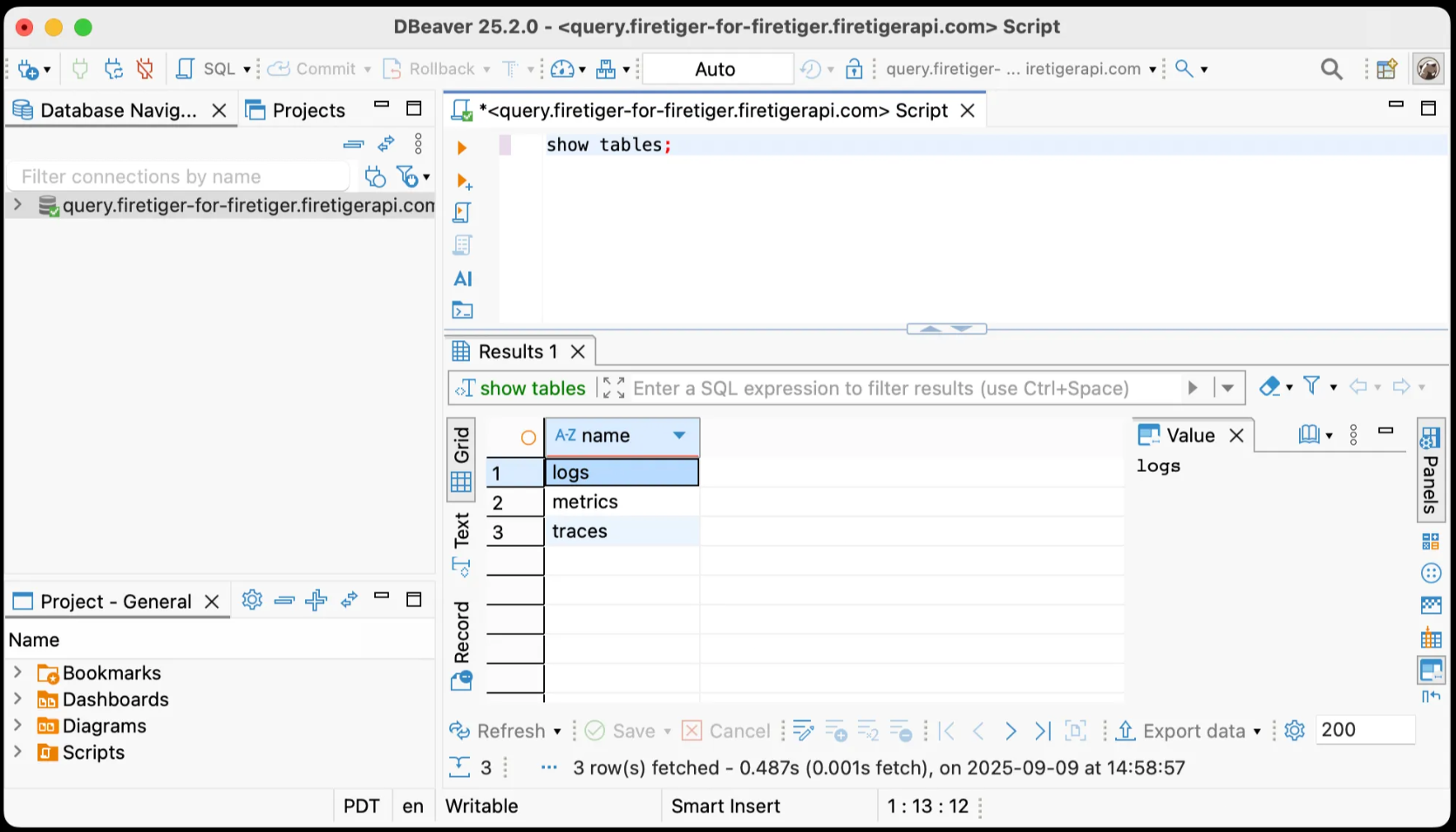
Type a simple query such as SHOW TABLES or SELECT COUNT(*) FROM logs and execute with Cmd+Enter: